
RetroWDW Gallery
The RetroWDW Gallery is one of the most critical parts of our site. It’s more than just pretty pictures. These historical photos can reveal details like when a certain changes took place in the parks, confirmation of the existence of a rumored legend and more.
While this SOP can look overwhelming, it’s written as a reference to explain each step in detail to cover most questions. Please read through the whole page as it will explain our workflow and the reasoning behind it. You can then use this page as a reference.
I strongly suggest going through our gallery on the front-end fully so that you can familiarize how we have divided up the gallery. It’ll make your job of sorting a lot easier later. Note that the individual attraction/pavilion concept art & construction galleries will be folded into their respective attraction sub-galleries in the future. (It requires re-working some published content first so we’re being cautious about moving the galleries. The Horizons gallery will show you how future attractions galleries will appear)
It’s very important that we add as much information to each photo, tag it appropriately and give proper credit when applicable.
We are currently using the NextGen Gallery WordPress plugin.
Where are the Images
The images are stored in the NextGen Gallery – use the NextGen Gallery Admin Menu to access the gallery listings under “Manage Galleries“:
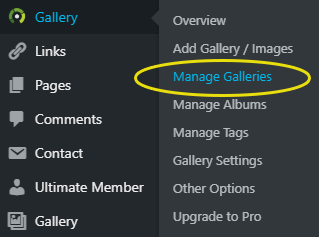
From here all the galleries are listed – in order of creation – and yeah, it lacks filter. But any recently created galleries are at the end. The developers haven’t created a good way to filter just the galleries. And if you do a search – it returns images – not galleries.
So if you are looking for a specific gallery, you have to page through the list until you find it. I know, it’s lame and we’ve put in a request for them to fix this.
Incoming!
All the pictures that we’ve found during research and in our collections are stored in the incoming gallery. This gallery is not publicly accessible. And it’s where you may be spending a lot of time. See the Sorting Images Into Galleries section below for how to move photos out of this section into their proper galleries.
Titles
Titles are one of the most important parts of our job. Along with descriptions and tags, titles are one of the ways users can find the image they are looking for. Try to keep title shortish but specific. Use your description section to go into more detail. Try to image how you would search for this image when writing titles.
Titles are shown under each Image’s thumbnail in a gallery – so keep that in mind when choosing your text. Only about the first 20-22 characters are shown under a thumbnail.
Good Titles:
- Epcot Entrance in 1994 (At night)
- Early Futureport Terminal concept art
- Main Street Penny Arcade Fortune Teller
Bad Titles
- Epcot
- Concept Art
- Main Street
If you know the year or the picture is at night try to include it in the title – if it will fit. Otherwise make sure it’s in the description and tags.
Make sure to click on the SAVE CHANGES button often to save your work!
Descriptions
Descriptions are where we go into a little more detail about the image and give credit when known. Try not to make the description too long or the text may be truncated.
HTML & Sources
HTML can be used here to create links back to the original source – if you’re uncomfortable using HTML, make sure the URL is there anyways. If you use HTML, make sure to use the target="_blank" attribute to open the link in a new tab so they don’t “leave” RetroWDW.
Date
If the date of the photo is known, enter it in the description. Even just the year is important. Make sure to enter the year and month in the tags – see Tagging for the proper format for dates.
Make sure to click on the SAVE CHANGES button often to save your work!
Tagging
Enter as many terms that describe an image and a user may use to search for this image, separating the terms by commas. If you know the month enter it by the month’s full name, enter the year by its full year (1994, 1983, etc). If the image is of an attraction, enter the park and land it resides. There is no need to use WDW, DisneyWorld or similar tag. 99% of our content is in WDW. 🙂 On the rare chance the image is from another resort (like Disneyland) enter the resort. This will probably only be used for Imagineers and such.
Make sure to click on the SAVE CHANGES button often to save your work – especially if you are going to change pages, or perform some other image changes.
Rotating Images
Sometimes images come in sideways or upside down. If an image appears to be the wrong way up, click on its thumbnail to confirm it needs changes.
If the image already has a Retro WDW watermark on it – let Jason know and he’ll correct it.
If the image doesn’t have a watermark on it:
- Save you work using the
SAVE CHANGESbutton - Click on the
Rotatelink under the thumbnail. - A pop-up will appear, choose the proper rotation/flip and click the
UPDATEbutton.
Sorting Images
There are two ways of sorting images – 1. Sorting image into their proper galleries and 2. Sorting the order of images within a gallery.
Sorting Images Into Galleries
This is primarily done when working in the Incoming gallery or if you have found an image in the wrong gallery.
If you’ve found an image in a wrong gallery – please let Jason know before moving it and he’ll make sure moving it won’t break any current links to it.
-
- If you have recently added any tags, titles or descriptions to any photos in the gallery and you haven’t saved your changes yet, click the
SAVE CHANGESbutton now. If you move/delete or perform any of the other major changes to the gallery you may lose your work. So save often. - Check the checkbox for each image you want to move (you can only move to a single gallery at once).
- At the top of the gallery, click on the
Bulk actionsdrop-down and chooseMove to...then click theAPPLYbutton. - A popup will appear – choose the gallery and click
ok. - When in doubt, or if you’re worried about moving an image, please contact me (Jason).
- If you have recently added any tags, titles or descriptions to any photos in the gallery and you haven’t saved your changes yet, click the
Sorting the Order of Images in a Gallery
Once images are in a gallery we generally sort them into the order they appear in an attraction – from the exterior of the attraction -> attraction sign -> queue -> attraction scenes -> exit /misc. Depending upon how many construction/concept photos/art we have they may be in sub-galleries or if we only have a few, concept art is first followed by construction then the normal order.
-
- Click the
SORT GALLERYbutton at the top of the gallery page. - Drag the images into their proper order.
- Click on the
UPDATE SORT ORDERbutton - Click on the
BACK TO GALLERYbutton to return to the gallery.
- Click the
Adding New Galleries/Albums
If you find that you have a picture that doesn’t have a place, contact me (Jason) via Slack and I’ll set it up. We have a special technique we need to employ to ensure we’re getting proper SEO and the gallery/album setup is a little wonky to get it fully online.
Watermarks
Applying watermarks is typically done by Jason or Todd, We tend to not put watermarks on images that meet one or more of the following criteria:
- It’s too small and the watermark would obstruct a good portion of the image
- The image is known to come only from a single source (i.e. ProgressCity) – not Disney and it is watermarked with that site.
We sometimes find images that we know are Disney publicity shots, but another site has attached their watermark, we may have our watermark on it as well. For the longest time our watermarking system slapped it on everything uploaded. If you find an existing image that you think shouldn’t have a watermark on it – let Jason or Todd know and we’ll review it.
We don’t want to take credit for someone else’s work and we are doing our best to give proper credit where its due – but sometimes the image has been in the public domain a long time, no one really knows the original source and the highest quality version has an existing watermark on it.
Deleting
Typically we only delete images if we have a higher quality version already in the gallery. If in doubt, ask Jason.